How to Use Merge PDF — A Complete Guide
<h1>How to Merge PDFs: A No-Nonsense Guide for Real Users</h1> <p>You're staring at three PDFs: a client proposal, a contract, and a spreadsheet. Your boss ...
You're staring at three PDFs: a client proposal, a contract, and a spreadsheet. Your boss wants all of them in one document by noon. You've tried emailing them to yourself, but the file sizes are too big. You've tried online tools, but they ask for uploads or show ads. Furthermore, you need a solution that works without leaving your device. That's where merge PDF comes in.
Why You Need a Good Merge PDF Tool
Merging PDFs isn't just about combining files. It's about managing time, avoiding errors, and keeping your data safe. A bad tool might crash, loose pages, or — worse — send your files to a server. A good one? It should handle your work in the browser, without ever touching the cloud. That's exactly what Merge PDF does. It's the kind of tool you'd use if you were merging documents for a client, not a marketing pitch.
How to Merge PDFs in 3 Simple Steps
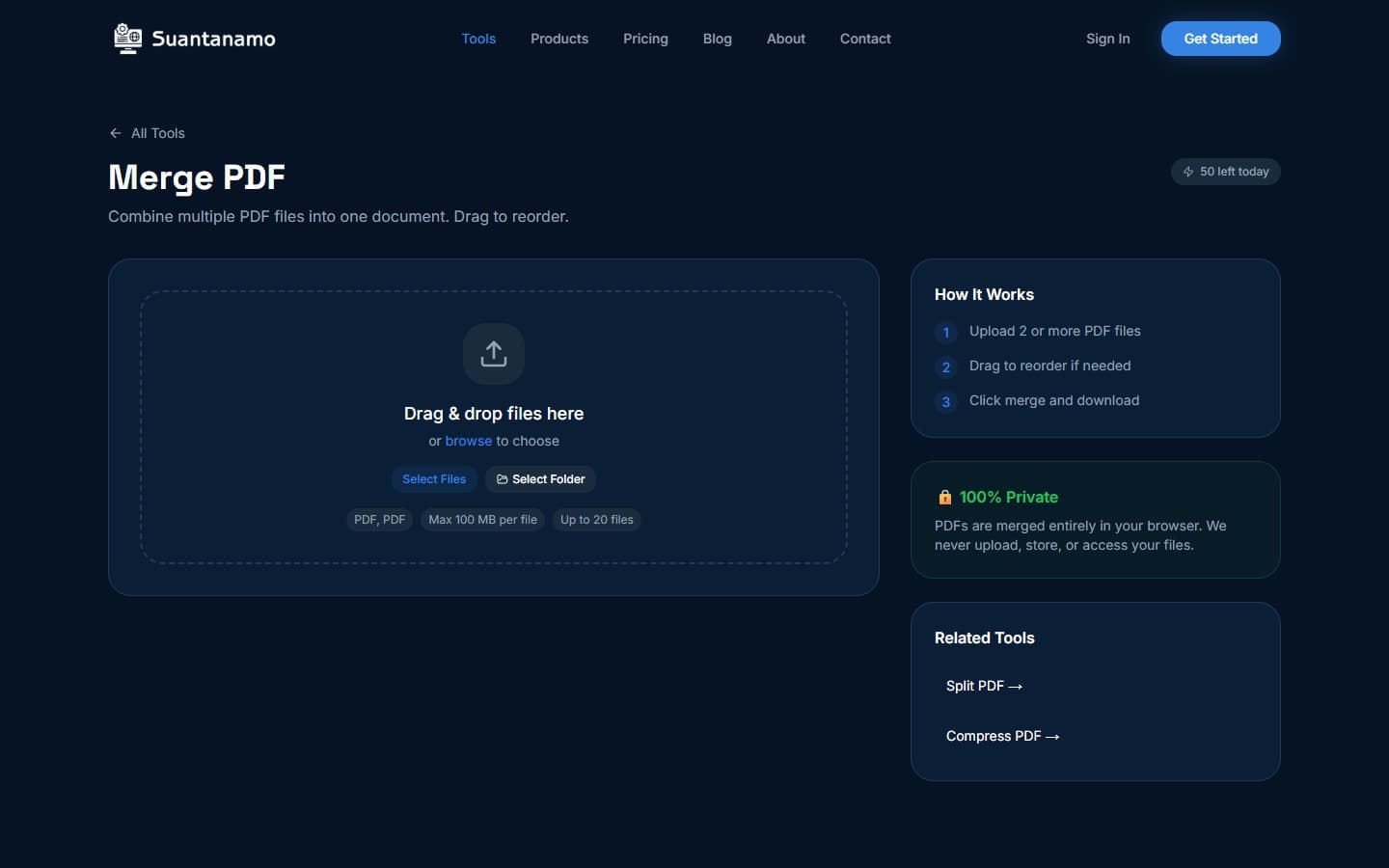
Open Merge PDF in your browser. You'll see a clean interface with a drop zone labeled "Drag & drop your PDFs here." The tool works in the browser, so your files never leave your device. Here's what happens next:
- Drag and drop: You can add as many PDFs as you want. The tool handles files up to 100MB each, which is more than enough for most documents.
- Reorder pages: Click and drag individual pages to rearrange them. This is perfect if you're merging a report with multiple sections.
- Export the result: Once you're done, click "Merge" and download the combined file. It's all done locally, so no upload required.
For example, if you're merging a 2MB invoice, a 1.5MB contract, and a 3MB spreadsheet, the tool will combine them into a single file of about 6.3MB. It takes less than 5 seconds, even on a slow internet connection.
Advanced Tips for Merging PDFs
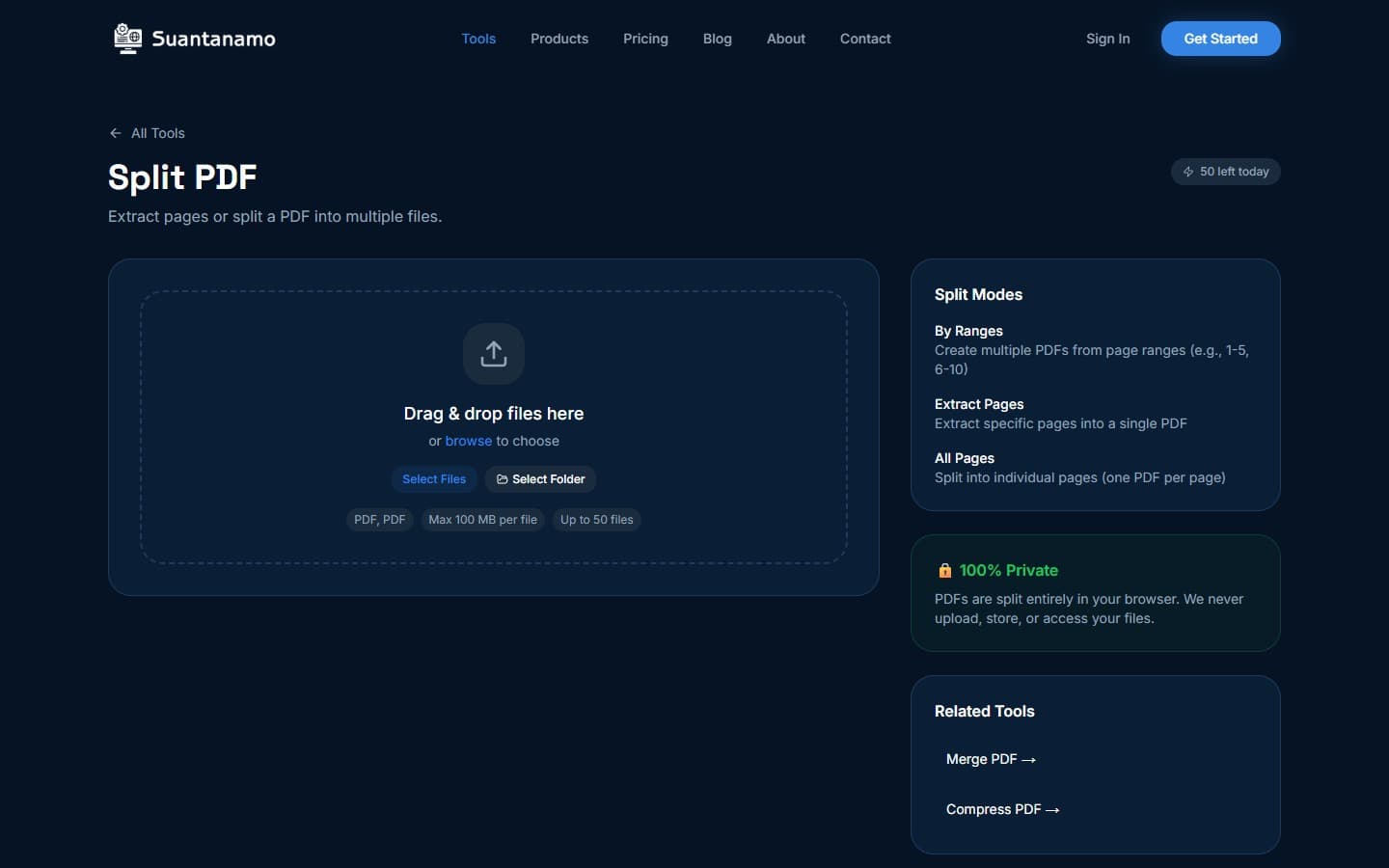
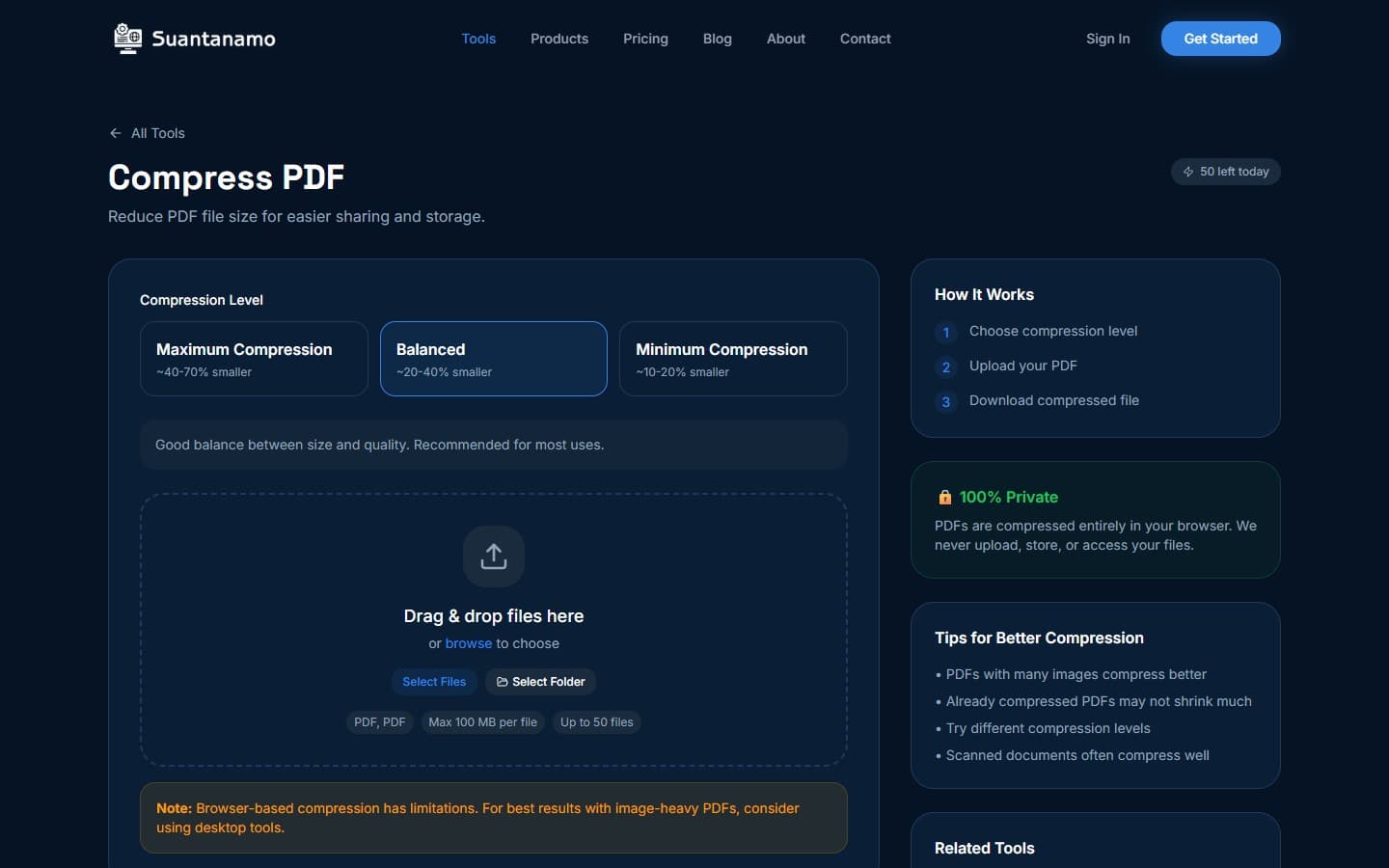
Most people only need the basics, but there are a few tricks that can save time. First, always check the order of pages. If you're merging a presentation with slides and speaker notes, you might want to reorder them to match your flow. Second, use the split tool if you need to extract specific pages. Split PDF lets you isolate sections or split a document into smaller files. Third, if your merged PDF is too big, consider using Compress PDF to reduce the file size by up to 70% without losing quality.
Here's a real-world scenario: You're preparing a 10-page report with 5 PDFs. You merge them, but the final file is 12MB. You compress it to 4MB and send it to your client. That's the power of combining tools.
Why Privacy Matters (And How It Works)
When you merge PDFs, you're dealing with sensitive data. That's why processing happens entirely in the browser. No files are uploaded to servers, no data is stored, and no third parties get access. This is critical for professionals who handle confidential information, like lawyers, accountants, or researchers.
For example, if you're merging a 15-page contract with a 10-page invoice, the tool doesn't send those files anywhere. All operations are done locally, which is a big deal compared to other tools that require cloud storage. This also means you can use the tool on a public computer without worrying about data leaks.
When to Use Merge PDF vs. Other Tools
Not every PDF task is the same. If you're merging a few files, Merge PDF is you're go-to. But if you need to compress the result, use Compress PDF to reduce the file size. If you're splitting a document into multiple parts, Split PDF is the right choice. And if you're converting pages to images, PDF to Images is the tool for that.
Let's say you're working on a design project that involves both PDFs and images. You might merge a PDF of your client's logo with an image file. If the image is too large, use Compress Images to shrink it before merging. This approach saves time and avoids unnecessary file bloat.
Final Thoughts on Merging PDFs
Merging PDFs is a simple task, but it's easy to overlook the details. A good tool like Merge PDF handles the basics while letting you focus on your work. Whether you're combining documents for a client, organizing your own files, or preparing a presentation, the right tool can make all the difference.
If you're still unsure, start with the basics: drag and drop your files, reorder them, and export. Once you're comfortable, explore the other tools in the PDF suite to tackle more complex tasks. The key is to keep your workflow simple and your data safe.
--- *This article was written with AI assistance and reviewed by our team.*Try Merge PDF Free
Combine multiple PDF files into one document. Maintain original quality and formatting.
Use Merge PDF Now →